Google Slides Template Circle: Design Guide
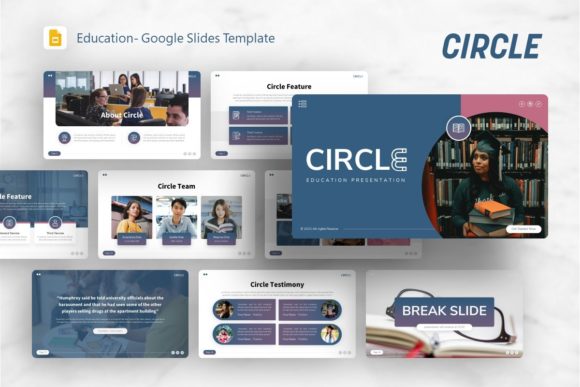
Visual communication often struggles to balance professional structure with organic creativity. The Google Slides Template - Circle addresses this tension by using geometry not just as decoration, but as a functional framework for organizing complex information. Unlike rigid grid-based layouts that can feel sterile, circular motifs introduce flow, continuity, and focus. This template serves as a versatile foundation for professionals who need to present data, portfolios, or business strategies without sacrificing aesthetic warmth. It transforms the standard slide deck from a linear list of bullet points into a cohesive visual narrative that guides the audience through your content with intention.
The Strategic Value of Circular Layouts
Circles are inherently inclusive shapes. In presentation design, they soften the hard edges of corporate data and create natural focal points. When you utilize the Google Slides Template - Circle, you are leveraging a design psychology that suggests unity and wholeness. This is particularly effective for explaining cyclical processes, such as product development lifecycles, marketing funnels, or educational curriculums. Instead of forcing these concepts into square boxes, the circular layout mirrors the actual nature of the workflow.
Beyond aesthetics, this geometric approach solves common hierarchy problems. A circle naturally draws the eye to its center, making it an ideal container for key statistics, headshots, or core value propositions. Surrounding elements can then orbit this central point, establishing a clear parent-child relationship between ideas. This spatial organization helps audiences retain information better than traditional left-aligned text blocks. For creators and marketers, this means your message lands with greater impact because the design itself reinforces the logical connection between your points.
Adapting the Template for Diverse Professional Goals
While the template includes 36 distinct slides, its true value lies in its adaptability across different sectors. The handcrafted infographics and pixel-perfect illustrations are not static assets; they are starting points for specific industry applications.
Creative Agencies and Portfolios
For designers and photographers, the portfolio presentation must demonstrate taste before a single word is spoken. The circular frames in this template offer a sophisticated alternative to standard rectangular image galleries. Use the picture placeholders to showcase work in a way that feels curated rather than cataloged. The resizable graphics allow you to create dynamic mood boards or case study breakdowns where the visual weight shifts based on project importance. This approach signals to potential clients that you understand composition and negative space, reinforcing your expertise through the medium of the pitch itself.
Startups and Pitch Decks
Investors review hundreds of decks, most of which look identical. Differentiating your startup requires a visual identity that feels established yet innovative. The Google Slides Template - Circle provides structured slides for team introductions, market analysis, and financial projections that avoid the cluttered look of amateur designs. Use the infographic slides to visualize your business model as an ecosystem rather than a spreadsheet. When presenting traction or user growth, circular charts can imply momentum and sustainability. The master slide functionality ensures that even if multiple team members contribute to the deck, the branding remains consistent and polished.
Education and Corporate Training
Educators and trainers face the challenge of maintaining engagement over long sessions. Circular diagrams are excellent for breaking down complex theories into digestible segments. Whether explaining a historical timeline, a biological system, or a compliance protocol, the rounded contours reduce cognitive load. The template’s easy customizable contents allow instructors to swap out dense text for visual metaphors. By using the drag-and-drop features, you can quickly adapt a generic process slide into a specific lesson plan, keeping the visual language fresh even when the subject matter is technical or dry.
Maximizing Technical Features for Efficiency
A beautiful template fails if it is difficult to edit. This resource is built on Master Slides, which is the single most important feature for efficient workflow. Rather than formatting individual slides one by one, you can adjust global elements like fonts, colors, and logo placement across the entire presentation simultaneously. This ensures consistency and saves hours of repetitive labor. When you download the PowerPoint .PPTX file, take time to explore the slide master view first. Setting up your brand guidelines here acts as a guardrail, preventing design drift as you populate the 36 available layouts.
The included vector icons and resizable graphics further enhance this efficiency. Because they are vector-based, they remain crisp at any size, eliminating the pixelation issues common with raster images. This scalability is crucial when adapting the presentation for different formats, such as exporting slides for social media carousels or printing handouts. The documentation file serves as a practical manual, ensuring you understand how to manipulate the smart shapes and placeholders correctly. Utilizing these technical foundations allows you to focus on content strategy rather than troubleshooting alignment issues.
Best Practices for Customization and Clarity
Having access to 36 slides does not mean you should use all of them. Effective presentation design is an exercise in subtraction. Review the full library and select only the layouts that directly support your narrative arc. Overloading a deck with variety for its own sake creates visual noise. Choose five to seven core slide types and repeat them to establish a rhythm. This repetition builds familiarity, allowing the audience to anticipate where information will appear and focus entirely on what you are saying.
When replacing the preview images, prioritize authenticity over stock perfection. The picture placeholders are designed to accommodate various aspect ratios, but you should still crop your source images intentionally. Ensure that faces or key product details are centered within the circular masks. If you are using the handcrafted infographics, resist the urge to fill every empty space. White space inside and around the circles is active design; it gives the viewer’s eyes a place to rest and emphasizes the content that matters. Remember that the demo images are for inspiration only; your final output should reflect your unique brand assets and real-world data.
Maintaining Visual Consistency Across Platforms
Your presentation likely lives beyond the projector screen. Stakeholders may view it on mobile devices, tablets, or printed paper. The Google Slides Template - Circle is designed with this multi-platform reality in mind, but you must test your adaptations. Circular elements can sometimes be cropped awkwardly on smaller screens. Verify that critical text remains legible and that interactive elements are accessible regardless of the viewing context.
Consistency also extends to color usage. The template likely includes a predefined palette, but you should map these colors to your specific semantic needs. Assign specific hues to specific categories—for example, blue for financial data and green for growth metrics—and stick to this coding throughout the deck. This creates a subconscious layer of communication where color becomes a navigational tool. By treating the template as a systematic design kit rather than a collection of pretty backgrounds, you elevate the professionalism of your output and ensure your message resonates clearly with adult audiences across creative, corporate, and educational contexts.